¶ 1. What HEMS Does
HEMS connects PV, storage, the grid, and household loads through software and hardware. It continuously collects data — PV generation, household consumption, electricity price, and battery state — and schedules charging/discharging automatically according to the active strategy.
¶ 2. Prerequisites
Before creating a HEMS, each device must already be added to the Zendure app and configured. Device pairing, network setup, firmware update, and device-level settings are covered on the device's software setup page (e.g. SolarFlow 2400 Pro Software Setup).
A storage device joins or leaves a system through the Add to HEMS switch on its device page: when on, the device is controlled by the HEMS and its manual settings are disabled; when off, it is removed from system control.
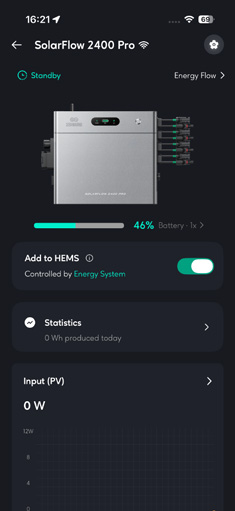
To create a system you need:
- The Zendure app installed, with an account registered and logged in.
- At least one storage device added to the app. A system cannot be created without one.
- (Recommended) A smart meter and, where available, a dynamic or TOU tariff — required to enable the ZENKI, Self-Consumption, and TOU modes.
¶ 3. Creating a System
On the app Home screen, tap Create System and complete the following steps.
| Step | Action | Notes |
| 1. Start | Read the system introduction, tap Start. | — |
| 2. Select region / country standard | Select the country where the equipment is installed. | All devices in the system follow this grid standard. Voltage, frequency, and national power limits differ by country. |
| 3. Select devices | Select storage devices, meter, and plugs to include. | Storage: max 6 (≥1 required). Meter: max 1. Plugs: max 60. Tap Support Device to view compatible models. |
| 4. Safety Settings | Set the maximum output/input power for the system. | Defaults to the national compliance limit. Higher values require in-app authorization (see Section 5). New users should keep the default. |
| 5. System Location | Set the system's geographic location. | Required for ZENKI (AI) Mode weather forecasting. Editable later. |
| 6. Finish | System created. Rename and use. | Max 20 systems created per account; max 20 systems shared to an account. |
After creation, the system starts in Auto Mode by default and begins operating immediately without further configuration. The operating mode can be changed at any time (see Section 6).
¶ 4. HEMS Interface
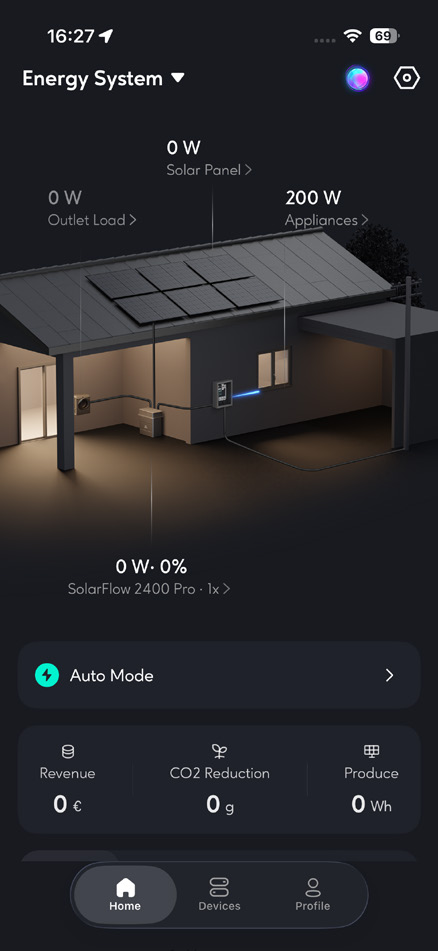
The HEMS interface is divided into four sections.
¶ 4.1 Whole-House Energy Flow Diagram
Displays real-time energy flow between PV, storage, home, and grid based on the connected devices.
| Element | Description |
| Solar | Display the power input from the solar panels within the system, and view the branch data. |
| Consumption / Appliances | Real-time household consumption. Shows estimated values if no meter/plug is connected; monitored values if connected. |
| Energy Storage Devices | Battery count, total charge/discharge power, and average remaining SOC. Tap for per-device detail. |
| Total Output / Input | Total charge or discharge power between storage and home. Displays a Max marker when the safety limit is reached; tap to adjust. |
| Grid | Real-time home–grid power flow. Requires a smart meter. |
| Outlet Load | If your device supports an off-grid outlet, the system will summarize the data of all devices with off-grid outlets here. |
The diagram renders differently depending on the configuration (no plug/no meter, plug only, meter only, plug + meter, plug + meter + off-grid outlet).
A storage device reports one of four states: Charging (battery charging), Discharging (battery discharging), Standby (no input/output), and Bypass (battery full, at its SOC limit, or abnormal — solar supplies the home directly).
Bypass mode: When the battery is fully charged or fully discharged, the system enters bypass and routes PV input directly to the home. To resume charging/discharging, adjust the battery charge/discharge limits in settings.
¶ 4.2 Energy Plan
Displays the active HEMS operating mode. See Section 6.
¶ 4.3 Earnings Statistics
Displays monetary savings, CO₂ reduction, and PV generation attributed to HEMS.
¶ 4.4 Historical Data
Displays historical data for all devices: solar, battery charge/discharge, household consumption, and grid (from smart meter). Viewable by day, week, month, or year.
¶ 5. Safety Power and Grid Compliance
The Safety Power setting limits the maximum output/input power of the system to comply with local regulations and protect home wiring.
¶ 5.1 National Compliance Limits
| Country | Compliance Power | User-Settable Max | Max After Authorization |
| Germany | 800 W | 2400 W (whole-house) | Unlimited (up to 7.2 kW) |
| France | 900 W | 2400 W | Same |
| Belgium | 800 W | 2400 W | Same |
| Netherlands | 800 W | 2400 W | Same |
| Italy | 800 W | 2400 W | Same |
| Austria | 800 W | 2400 W | Same |
| Switzerland | 600 W | 2400 W | Same |
¶ 5.2 Authorization Tiers
| Range | Requirement | Status |
| Above national limit, up to 2400 W | User signature. | Usable immediately after signing (0–2400 W). |
| Above 2400 W | User signature + installation proof upload, submitted for review. |
Approved: push notification; setting unlocked. Under review: 0–2400 W usable while waiting. Rejected: reason shown; resubmit. |
Switching the grid standard to a country that has not been authorized requires re-authorization before the corresponding power range can be used.
¶ 6. Operating Modes
Operating modes define how the system manages energy flow between PV generation, battery storage, household consumption, and the grid. Each mode represents a single, clearly defined energy strategy. A newly created system starts in Auto Mode; users can switch modes at any time in the app.
When switching to a new mode, the app presents a short introduction, checks the mandatory conditions required for the mode to function, and offers optional preferences for fine-tuning.
¶ 6.1 Mode Summary
| Mode | For | Mandatory Settings | User Preferences |
| Auto Mode | A simple, hands-off experience. | None | Electricity price (fixed / dynamic / TOU) |
| ZENKI Mode | AI-driven optimization for the best energy decisions. | Smart meter; system location; electricity price (fixed / dynamic / TOU) | None |
| Self-Consumption Mode | Maximizing solar usage and energy independence. | Smart meter | None |
| TOU Mode | Taking advantage of electricity price differences. | Smart meter; electricity price (dynamic / TOU) | Custom high/low price ranges; minimum SOC during the normal-price period |
| Custom Mode | Full manual control over system behavior. | None | Charge/discharge schedule |
¶ 6.2 Auto Mode
For users who prefer a simple, hands-off experience.
Auto Mode handles energy decisions automatically based on real-time system conditions, continuously balancing generation, consumption, and battery usage. It works out of the box with no required setup, and now incorporates electricity price into its charging decisions.
| Operation | Condition | Logic |
| Charge | Fixed price or price not set | Charge only from surplus solar power. |
| Charge | Dynamic price — low-price period | Surplus solar first, then grid power (up to 80% SOC by default). |
| Charge | Dynamic price — high-price period | Charge only from surplus solar power. |
| Discharge | Smart meter present | Discharge to minimize grid import to the home. |
| Discharge | No meter, smart appliances present | Discharge to cover smart-plug consumption. |
| Discharge | No meter, no smart appliances | Discharge at a fixed 200 W. |
¶ 6.3 ZENKI Mode
For users who want AI-driven optimization for better energy decisions.
Zenki Mode continuously evaluates energy production, consumption patterns, and electricity pricing to determine when to charge, discharge, or store energy. Forecasting and optimization run in the background, while scheduling decisions remain visible and traceable to the user.
Mandatory settings:
- A smart meter monitoring system consumption.
- System location for weather forecasting.
- Electricity price (fixed, dynamic, or TOU).
User preferences: None.
Operation: The mode displays a 24-hour schedule and a forecast chart (history plus forecast, with the dashed section beyond the current time representing predicted results) covering solar generation, home usage, and electricity price.
ZENKI requires an accumulation period of system data before forecasts become accurate. Adding new devices restarts this period.
¶ 6.4 Self-Consumption Mode
For users focused on maximizing solar usage and energy independence.
Self-Consumption Mode prioritizes using locally generated solar energy before drawing from or exporting to the grid. When solar production exceeds consumption, surplus energy is stored in the battery or exported, depending on configuration. When this mode is enabled, the battery cannot be charged from the grid — only from solar.
Mandatory settings: A smart meter monitoring system consumption. User preferences: None.
| Section | Priority |
| Solar generation | System consumption > battery charging > export to grid (if allowed) |
| System consumption | Solar generation > battery discharge > grid |
| Battery charging | Solar generation only |
¶ 6.5 TOU Mode
For users who want to take advantage of electricity price differences.
TOU (Time-of-Use) Mode is a price-driven strategy. The system continuously evaluates electricity prices and uses them to decide when to charge, discharge, or hold stored energy, prioritizing cost reduction while maintaining stable operation. The system divides prices into low, normal, and high ranges and acts within each. Price ranges use predefined defaults adjustable with a slider; manual entry of high/low values is no longer required.
Mandatory settings:
- A smart meter monitoring system consumption.
- Electricity price (dynamic or TOU).
User preferences:
- Custom high and low price ranges.
- Minimum SOC during the normal-price period — reserves energy for discharge during the high-price period.
| Price Range | Condition (default) | Operation Logic |
| Low | Bottom 25%, or below the custom low threshold | Charge only. |
| Normal | 25%–50%, or between the custom low and high thresholds | Operate on self-consumption logic; battery SOC stays at or above 80% by default (or the custom normal-period minimum SOC). |
| High | Top 50%, or above the custom high threshold | Charge only from surplus solar; otherwise discharge until SOC reaches the minimum SOC set in Battery Setting. |
¶ 6.6 Custom Mode
For users who prefer full control over system behavior.
Custom Mode provides the highest flexibility. The system follows a user-defined charge/discharge schedule exclusively and does not apply any predefined optimization logic or electricity-price information. Intended for advanced users familiar with energy management.
Mandatory settings: None.
User preferences: A specified charge/discharge schedule (time periods and power).
¶ 7. HEMS Settings
| Setting | Function | Related Modes |
| Energy Plan | Operating-mode entry. | All Modes |
| Set Electricity Price | Set tariff type (fixed / dynamic / TOU) and fetch latest price data. For a dynamic tariff, select the price source and set the expected high/low price ranges; the system then charges during low-price periods and discharges during high-price periods. | Auto Mode, ZENKI Mode, TOU Mode |
| Power Distribution Strategy |
Set the priority of solar energy flow and enable/disable grid export. Allow: once the battery is full, surplus solar beyond household demand may be exported. Forbidden: no export of surplus solar. |
— |
| Safety Setting | Set max discharge/charge power. The total system power never exceeds these limits. To exceed the national plug-and-play limit, the user signs a confirmation that an electrician has verified the wiring (see Section 6). | — |
| National Standards | Switch grid standard. Re-authorization of safety power required after switching. | — |
| Charging Settings | Define the charge/discharge schedule (0:00–24:00). Up to 10 tasks. | Custom Mode |
| System Location | Set system location. | ZENKI Mode |
| Battery Setting | Set battery discharge floor (minimum SOC) and charge ceiling. | All Modes |
| Manage Device | Add/remove/modify devices. Max storage: multiple; max meter: 1; smart appliances: multiple. | All Modes |
| System Information | Set system name; dissolve system. | — |
| Lab Feature | Experimental functions (currently: many-to-one local communication). | — |
AC (grid) charging is capped by the maximum safe charging power set in Safety Setting, regardless of mode.
¶ 8. FAQ
¶ 1. Can HEMS run with only one storage device and no smart meter?
Yes. The system runs in Auto Mode. A smart meter is required to enable Zenki, Self-Consumption, and TOU modes.
¶ 2. Is a dynamic tariff required?
No, but recommended. Low-price charging / high-price discharging requires a dynamic or TOU tariff (used by Auto, Zenki, and TOU modes).
¶ 3. Why are no forecast/savings curves shown after enabling Zenki?
Zenki requires an accumulation period of system data before forecasts appear. Adding devices restarts this period.
¶ 4. Why can't the battery charge from the grid in Self-Consumption Mode?
By design. Self-Consumption Mode charges the battery from solar only. Use Auto, Zenki, or TOU mode to allow grid charging during low-price periods.
¶ 5. What happens if a device goes offline?
Online devices continue per strategy; the offline device output is set to 0 W. Operation resumes when the device reconnects.
¶ 6. How is output increased beyond the default 800 W?
Adjust Safety Setting and complete the in-app authorization (signature, plus installation proof above 2400 W). Verify wiring protection with an electrician before increasing.